Manage BeZoned user licenses
After purchasing BeZoned licenses through Microsoft Marketplace, you can assign them to users in your organization. In this guide, we explain where BeZoned licenses are managed and how to assign, remove, or reassign purchased licenses in the Microsoft Admin Center. See this guide about purchasing: Puchase BeZoned user licenses
Where BeZoned licenses are managed
Purchased BeZoned licenses are assigned and managed in the Microsoft Admin Center.
BeZoned also offers a free version for small teams. Licenses for the free version are managed separately in the BeZoned License Management Center.
Check your available BeZoned licenses
Before assigning licenses, check that your BeZoned subscription has enough licenses available.
Sign in to the Microsoft Admin Center.
Go to Billing > Your products.
Find your BeZoned subscription.
Check the number of available licenses.
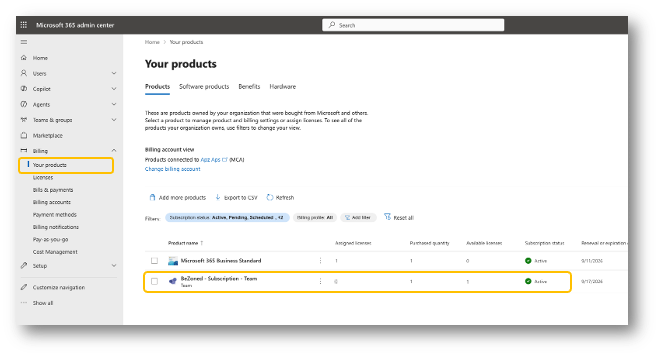
If you need additional licenses, select the BeZoned subscription and choose the option to add more licenses.
Assign BeZoned licenses to users
After confirming that licenses are available, you can assign them to people in your organization.
In the Microsoft Admin Center, go to Billing > Licenses.
Select your BeZoned subscription.
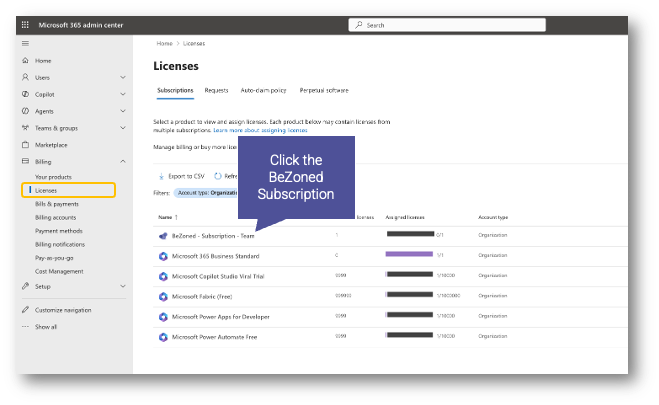
Assigning BeZoned licenses Click Assign licenses.
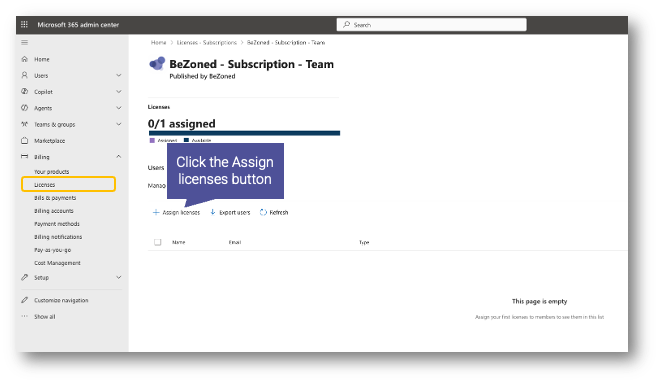
Assigning BeZoned licenses Select the users who should receive a BeZoned license.
Complete the assignment in the Microsoft Admin Center.
Remove or reassign a license
You can remove a BeZoned license from a user when they no longer need access. The released license then becomes available to assign to another user.
Go to Billing > Licenses in the Microsoft Admin Center.
Select the BeZoned subscription.
Select the user whose license you want to remove.
Remove the license.
If needed, use Assign licenses to assign the available license to another user.
Tip
Removing a user from a BeZoned license does not require you to purchase a new license before assigning that same license to another user.
Was this helpful?
Still need help? Ask the team