Use the BeZoned License Management Center
What the BeZoned License Management Center is for, who can access it, and how to assign free seats to users.
The BeZoned License Management Center gives administrators one overview of who in your organization has access to BeZoned. In this guide, we explain what it is for, how to control who can open it, and how to use it to assign free seats.
License Management Center vs. Microsoft Admin Center
BeZoned access comes from two kinds of licenses, and each is managed in its own place:
In short: you assign free seats in the BeZoned License Management Center, and you assign paid licenses in the Microsoft Admin Center. The License Management Center still shows paid licenses, so you can see everyone's access in one list, but Microsoft handles paid license assignment and billing.
To learn how to buy and assign paid licenses, see Purchase BeZoned user licenses and Manage BeZoned user licenses.
Control who can access the License Management Center
Only people with the BeZoned Administrator role on the BeZoned enterprise application in Microsoft Entra ID can use the License Management Center. Anyone else who signs in sees a Permission required message and cannot view or change licenses.
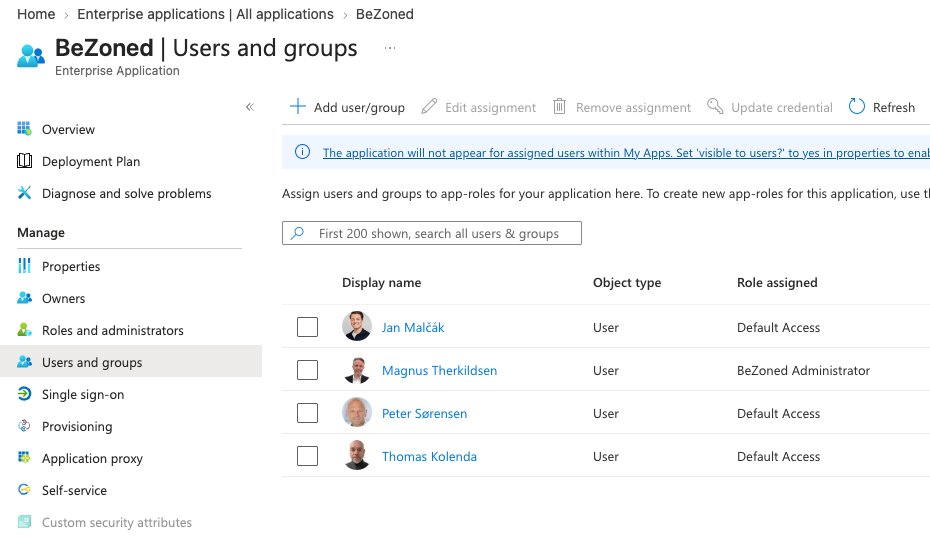
You assign the role in the Microsoft Entra admin center. To do this, you need to be a Global Administrator, Cloud Application Administrator, or Application Administrator, or an owner of the BeZoned enterprise application.
Sign in to the Microsoft Entra admin center.
Go to Enterprise applications > All applications and open BeZoned.
Under Manage, select Users and groups.
Select Add user/group.
Under Users and groups, select the people who should manage BeZoned licenses.
Under Select a role, choose BeZoned Administrator.
Select Assign.
Good to know
A user can be listed twice on the Users and groups page, once with Default Access and once with BeZoned Administrator. That is expected. Only the BeZoned Administrator entry gives access to the License Management Center.
The new role takes effect the next time the person signs in. If they already have the License Management Center open, ask them to sign out and sign in again.
Assigning the role to a group instead of individual users requires Microsoft Entra ID P1 or P2.
To remove someone's access, select their BeZoned Administrator entry on the Users and groups page and select Remove assignment.
Use the License Management Center
Sign in
Sign in with your Microsoft work account.
Understand the overview
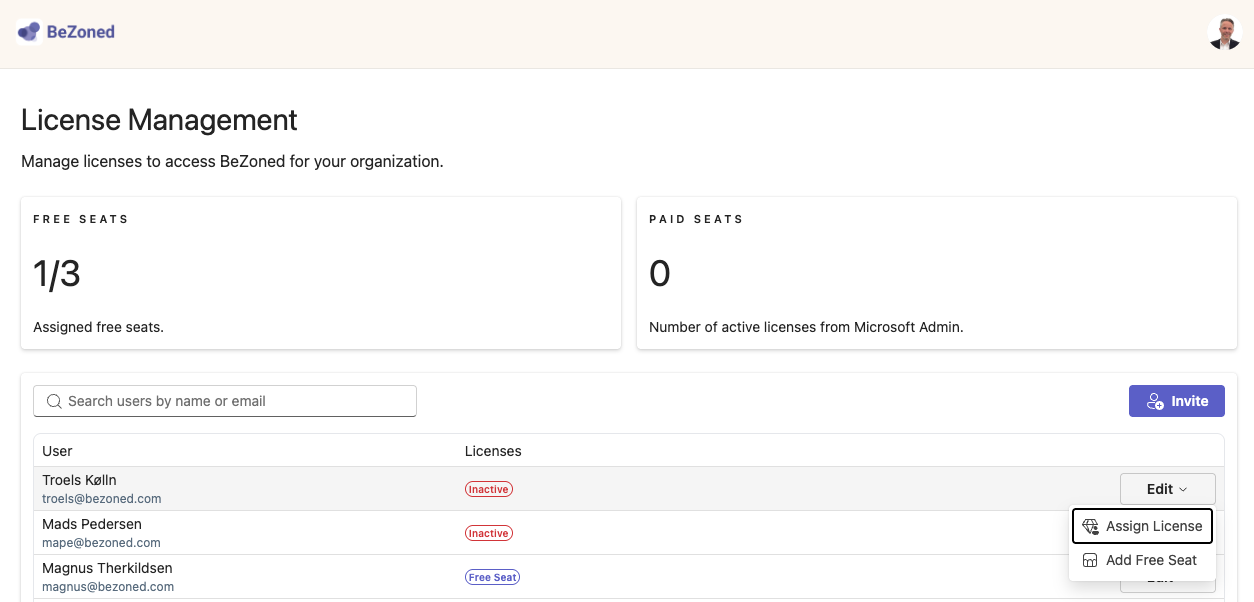
At the top of the page, two cards summarize your organization's licenses:
Free seats: how many free seats are assigned out of how many your organization has, for example 1/3.
Paid seats: the number of active licenses from your BeZoned subscription in the Microsoft Admin Center.
Below the cards is a list of users. The Licenses column shows each user's status:
Add users to the list
If someone is missing from the list, invite them first:
Select Invite.
Search for the person in your organization and select them.
Confirm to add them to the list.
Inviting someone only adds them to the list so you can give them a free seat or license. It does not give them a seat or access to any specific office.
Assign a free seat
Find the user in the list.
Select Edit in the Actions column.
Select Add Free Seat.
The user's status changes to Free Seat, and the Free seats counter goes up by one.
Remove a free seat
Find the user in the list.
Select Edit > Remove Free Seat.
The seat is released straight away, and you can assign it to someone else.
Assign or manage a paid license
You can't assign paid licenses in the License Management Center, but it takes you to the right place:
Select Edit on the user, then Assign License (or Manage License if they already have one).
Select Assign License in the dialog to open the Microsoft Admin Center in a new tab.
Find the BeZoned subscription and assign or remove the license for the user. See Manage BeZoned user licenses for the steps.
Go back to the License Management Center and reload the page to see the change.
Users with both a free seat and a paid license
If a user has both a free seat and a paid license, a warning appears at the top of the page. The user only needs one. When you move someone to a paid license, select Edit > Remove Free Seat so the free seat can go to someone else.
Troubleshooting
"Permission required" when I open the page: your account doesn't have the BeZoned Administrator role. Ask an administrator to assign it as described above, then sign out and sign in again.
All free seats are used: remove a free seat from someone who no longer needs it, buy paid licenses, or contact support.
A paid license doesn't show up: reload the License Management Center after assigning the license in the Microsoft Admin Center.
Was this helpful?
Still need help? Ask the team